Introduction
Creative AI photo editing has completely transformed the way people create unique portraits and social media artwork. One of the newest trends in digital art is combining realistic photography with animated cartoon companions. This style blends real-world photography with soft 2D illustration, creating a fun and visually engaging composition that feels cinematic, artistic, and playful at the same time.
"Garden Stroll With Animated Companion Prompt"
Create an image. Use the uploaded image as the main reference. Keep the real person completely unchanged — same face, pose, outfit, lighting, and background.Add a 2D cartoon version of the same person on the LEFT side of the image.The cartoon must be a smaller companion version, around 30–40% of the height of the real person.Maintain exact matching of:– pose (same hand position and head tilt)– facial expression (same expression as the real person)– hairstyle and hair details– outfit (same design, same colors, same patterns)The cartoon should look like a stylized duplicate of the real person, not a different character.Keep proper spacing between the cartoon and the real person. Do not overlap.Align both characters on the same ground level (feet aligned naturally).Add soft shadow under the cartoon for realistic placement.Use clean 2D soft cartoon style with smooth outlines and pastel colors.Background remains unchanged.Ensure balanced composition — real person remains the main focus, cartoon is secondary and smaller in scale.No size mismatch, no distortion, no outfit change.
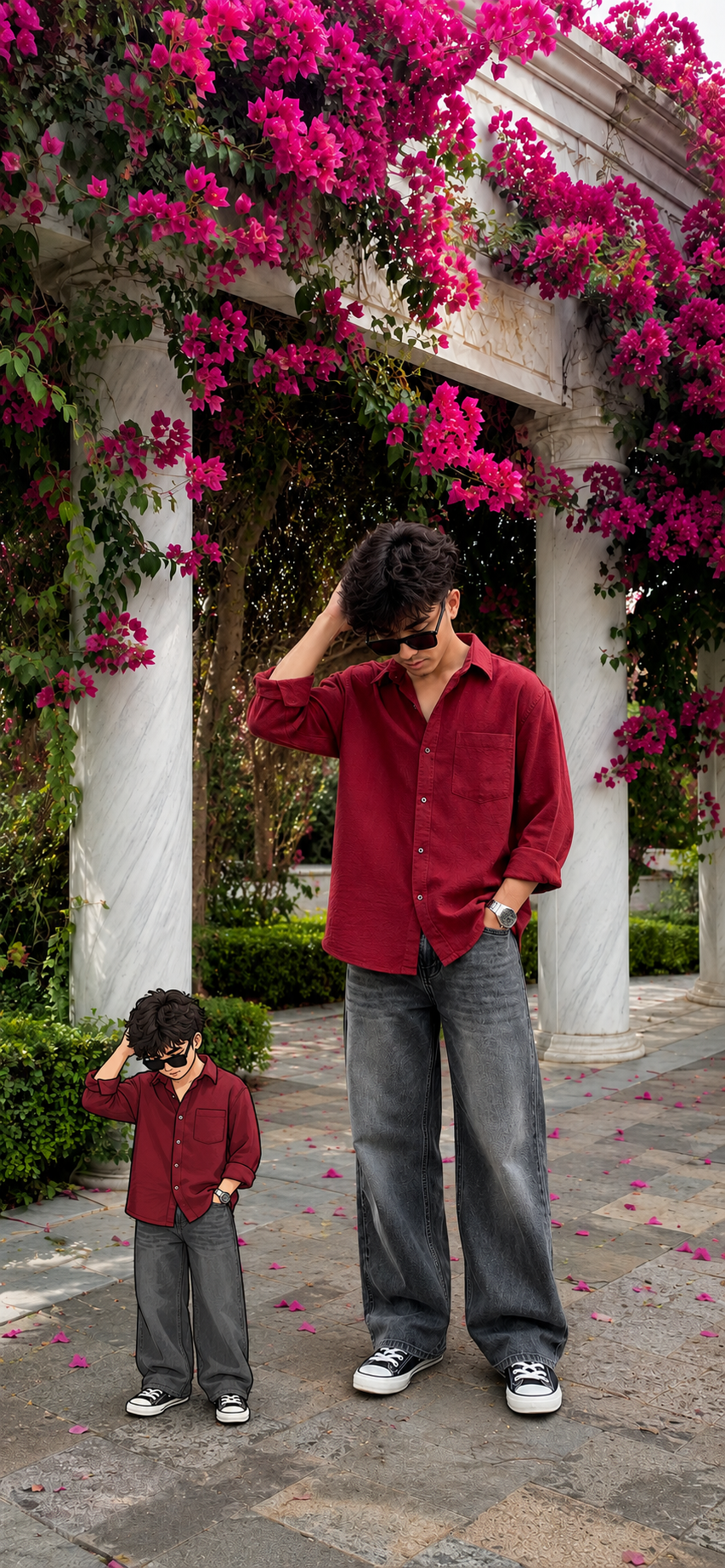
The “Garden Stroll With Animated Companion” concept is a perfect example of this trend. In this design, the original portrait remains completely realistic while a smaller cartoon version of the same person appears beside them like a miniature animated companion. The combination creates a storytelling effect that instantly captures attention.
The charm of this editing style comes from maintaining accurate facial details, matching poses, identical outfits, and realistic placement between the real subject and the cartoon version. Instead of looking like two separate characters, the cartoon acts like a stylized duplicate of the original person.
In this particular scene, the subject stands beneath beautiful bougainvillea-covered marble arches wearing an oversized deep red shirt, loose charcoal jeans, sunglasses, and sneakers. The animated companion mirrors the exact same posture, hairstyle, expression, and fashion styling while appearing in a soft 2D illustrated form.
This type of portrait is perfect for:
Instagram posts
YouTube thumbnails
Fashion edits
Creative profile pictures
Digital posters
Pinterest content
AI art showcases
With modern AI image generators and editing software, creating these artistic companion portraits has become easier than ever.
How To Use Photo Editing?
Photo editing allows you to transform ordinary images into cinematic digital artwork. AI editing tools can now combine realistic photography with stylized cartoon illustrations while preserving the original image quality and composition.
To create a “Garden Stroll With Animated Companion” portrait, the editing process focuses on three important elements:
Realistic preservation
Cartoon duplication
Balanced composition
The real person should remain untouched. This means:
Same facial features
Same lighting
Same outfit
Same pose
Same background
The cartoon version should look like a miniature duplicate instead of a different character. Maintaining matching posture and outfit details is extremely important for realism.
A successful companion-style edit creates visual harmony between both characters. The cartoon should feel naturally placed in the scene rather than randomly pasted into the image.
When writing prompts for AI generation, details matter a lot. A high-quality prompt should include:
Exact pose description
Outfit details
Cartoon style
Character scale
Placement direction
Lighting consistency
Background preservation
Shadow placement
Facial accuracy
For example:
“Add a small 2D cartoon duplicate”
“Maintain exact matching pose”
“Use soft pastel cartoon style”
“Align both characters on the same ground level”
“Keep realistic shadow under the cartoon”
These instructions help AI tools generate accurate and balanced compositions.
Another important editing principle is scale control. The animated companion should remain secondary in focus while the real person stays visually dominant. Usually, the cartoon companion should be around 30–40% of the height of the original subject.
This creates a cute storytelling effect without distracting from the main portrait.
Tools You Can Use For Prompt Copy And Create Photo
There are many AI and photo editing platforms available that can help create realistic companion-style portraits.
1. Adobe Photoshop
Photoshop is one of the best tools for advanced photo compositing and cartoon integration.
Features:
Layer masking
Cartoon overlays
Shadow adjustments
Background preservation
High-end retouching
It is ideal for professional-level editing and realistic blending.
2. Canva
Canva is beginner-friendly and excellent for creating aesthetic social media designs.
Features:
Easy drag-and-drop interface
Cartoon sticker placement
Poster templates
Text overlays
Mobile editing support
Canva works especially well for Instagram and Pinterest content creation.
3. PicsArt
PicsArt provides powerful mobile editing features with AI-based effects and cartoon tools.
Features:
Cartoon filters
AI cutout tools
Background effects
Stickers and overlays
Easy color grading
This app is very popular among creators who edit directly on smartphones.
4. Leonardo AI
Leonardo AI can generate realistic and stylized character artwork from detailed prompts.
Features:
AI companion generation
Soft cartoon rendering
High-resolution outputs
Realistic lighting
Fashion styling
It is perfect for cinematic AI portrait creation.
5. Midjourney
Midjourney is widely used for artistic AI compositions and premium cinematic aesthetics.
Features:
Stylized character rendering
Cinematic environments
Smooth cartoon detailing
Soft artistic shading
Editorial-quality visuals
It creates highly polished AI-generated artworks.
6. ChatGPT Image Generator
AI image generation inside ChatGPT allows users to create realistic portraits and animated companion edits using detailed prompts.
Features:
Reference image support
AI character duplication
Cartoon companion generation
Cinematic composition
Fast image rendering
This tool is especially useful for creating custom AI artwork directly from uploaded photos.
How To Edit Photo?
Creating a “Garden Stroll With Animated Companion” image involves several simple but important editing steps.
Step 1: Select a High-Quality Portrait
Choose a clear portrait with:
Good lighting
Full-body visibility
Sharp facial details
Balanced background composition
Outdoor images with natural lighting usually work best.
Step 2: Write a Detailed AI Prompt
A detailed prompt helps maintain realism and accurate duplication.
Your prompt should include:
Background preservation
Exact facial matching
Same pose and expression
Outfit duplication
Cartoon placement
Scale instructions
Soft shadow details
Example concepts:
“Smaller animated companion”
“Same hairstyle and pose”
“2D soft cartoon style”
“No overlap between characters”
“Realistic ground alignment”
These instructions improve AI consistency.
Step 3: Generate the Cartoon Companion
Use an AI image generator to create the animated duplicate.
Important points:
Keep proportions balanced
Avoid exaggerated cartoon distortion
Maintain matching clothing folds
Keep accurate sunglasses and hairstyle
The cartoon should feel like a mini version of the original subject.
Step 4: Position the Cartoon Correctly
Place the animated companion beside the real person with natural spacing.
Best placement tips:
Keep both feet aligned
Match perspective angle
Maintain lighting direction
Avoid overlapping objects
This step improves realism significantly.
Step 5: Add Shadows and Blending
Soft shadows help integrate the cartoon into the environment.
Use:
Soft blur shadow
Light opacity
Ground contact shading
This makes the cartoon appear naturally placed instead of floating.
Step 6: Apply Final Color Adjustments
Use soft cinematic grading to enhance the image.
Recommended effects:
Warm highlights
Soft contrast
Gentle vignette
Slight film softness
Balanced saturation
Do not over-edit the cartoon colors. Keep them soft and pastel-like.
Step 7: Export in High Resolution
Export your image in:
PNG for maximum quality
JPG for social media
9:16 vertical ratio for Instagram Reels and Stories
High-resolution export ensures crisp details for both the realistic portrait and the animated companion.
Conclusion
The “Garden Stroll With Animated Companion” editing style combines realism and creativity in a unique and visually engaging way. By blending a realistic portrait with a smaller cartoon duplicate, creators can produce artistic images that feel cinematic, playful, and modern.
This style works especially well because it preserves the original image while introducing a stylized companion character that mirrors the same personality, fashion, and expression. The result feels natural, balanced, and aesthetically pleasing.
With the help of AI image generators and modern editing applications, anyone can create these companion-style portraits without advanced design skills. The key to success lies in maintaining accurate facial details, matching poses, proper scaling, and realistic placement.
Whether you are creating social media content, digital posters, fashion edits, or personal AI artwork, animated companion portraits offer a creative way to make your images stand out. Experiment with different backgrounds, poses, cartoon styles, and cinematic lighting to create your own signature visual aesthetic.